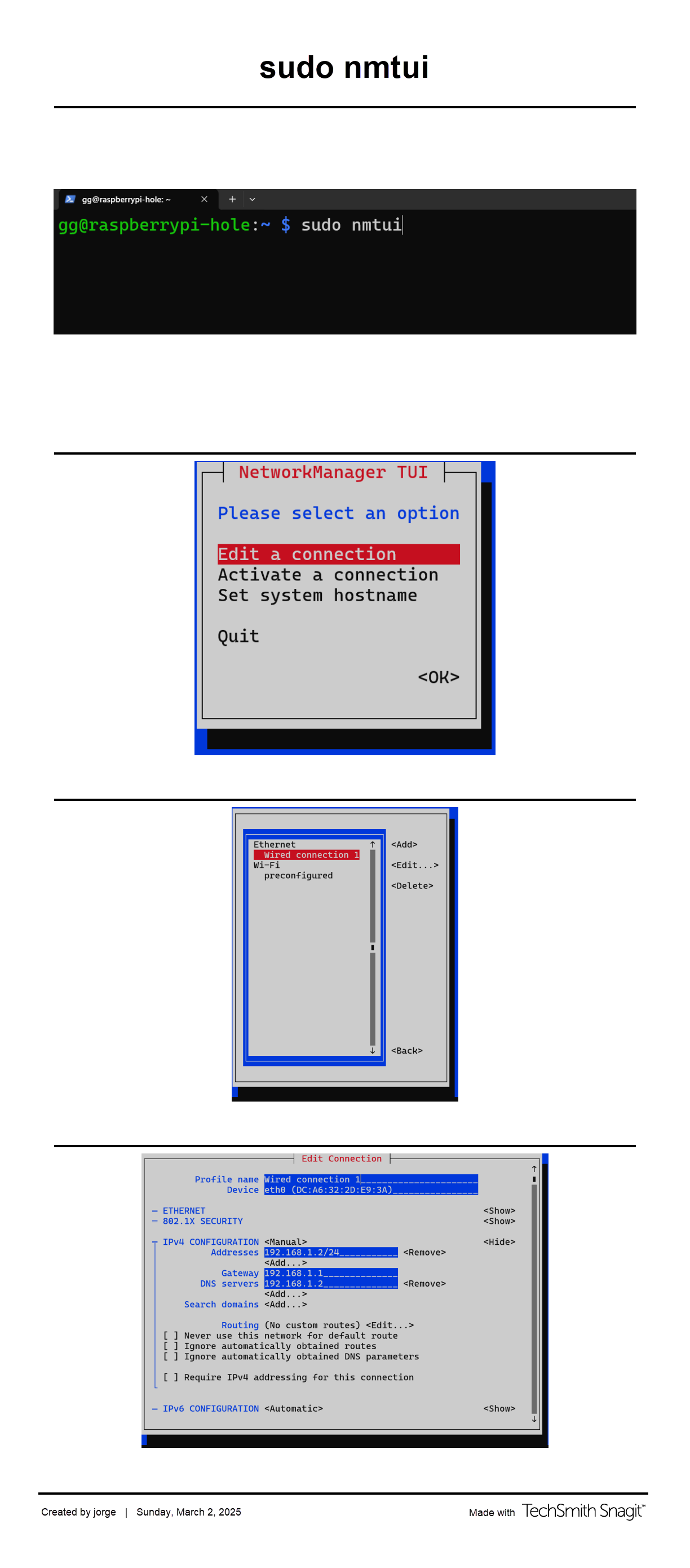
These instructions guide you through setting a static IP address (192.168.1.2) on a Raspberry Pi running Bookworm OS using nmtui, with the Pi configured to use itself as the DNS server for Pi-hole.
Prerequisites
- Raspberry Pi OS Bookworm is installed.
- You have terminal access (via SSH or directly).
- NetworkManager is installed (default in Bookworm).
- Pi-hole is installed and will use
192.168.1.2as its address. - You router will use
192.168.1.1as its address.
Steps to Configure
-
Open the Terminal
Log in to your Raspberry Pi and open a terminal.
-
Launch
nmtuiRun this command:
sudo nmtui
-
Navigate to “Edit a Connection”
Use arrow keys to select “Edit a connection” and press Enter.
-
Select Your Network
Highlight your connection (e.g.,
Wired connection 1for Ethernet or your Wi-Fi name) and press Enter. -
Configure IPv4 Settings
Scroll to “IPv4 CONFIGURATION”, change from
AutomatictoManual, and press Enter. -
Set Static IP and DNS
- Addresses: Enter
192.168.1.2/24(subnet mask 255.255.255.0). - Gateway: Enter your router’s IP (e.g.,
192.168.1.1). - DNS servers: Enter
192.168.1.2(the Pi’s own IP for Pi-hole).
- Addresses: Enter
-
Save the Configuration
Scroll to “OK” and press Enter, then Esc to return to the main menu.
-
Exit
nmtuiSelect “Quit” and press Enter.
-
Restart the Network
Apply changes with:
sudo systemctl restart NetworkManager
Or reboot:
sudo reboot
-
Verify the Static IP
Check with:
ip addr
Ensure
192.168.1.2is assigned to your interface (e.g.,eth0orwlan0).
Example Configuration
- Static IP:
192.168.1.2/24 - Gateway:
192.168.1.1 - DNS:
192.168.1.2(Pi-hole)
Notes:
- Adjust the gateway to match your network’s router IP.
- Ensure no other device uses
192.168.1.2to avoid conflicts. - If Pi-hole isn’t working, verify it’s running (
sudo systemctl status pihole-FTL). - If
nmtuiisn’t available, install it with:sudo apt install network-manager.